


Polices and Procedures are important for any business. They help you the business owner set the standards and guidelines for your team to follow. You could create a Procedure Manual or a Policy Manual, or combine the two together and have a Policy and Procedure Manual.
Policy and Procedure Manual Template + Free Templates

Table of Contents
Microsoft Word or Google Docs – Fast and Easy to Use and Update
For business owners, creating business manuals is crucial. How can you possibly operate your business if you have no communication tools in written form?
Policy Manuals and Procedure Manual’s are easy, cost-effective tools that clearly outline your team’s guidelines, standards, and workflows. These types of manuals help improve consistency, streamline operations, and boost overall business performance without breaking the bank.
Without a doubt, a simple word processing platform like Microsoft Word or Google Docs allow you to quickly create a Policy and Procedure Manual. The bonus is they are easy to update.
💡 Tip
Even the ‘Basics’ will make a Difference. Starting out with basic workplace guidelines and simple checklists is enough to improve your business significantly.
Best Procedure Manual Template for Word (Editable)
The Best Procedure Manual Template for Word (Editable) would be a professionally designed, ready-to-use document that helps you create a clear, consistent, and fully functional procedure manual in just hours. These types of manual area available online.
Built in Microsoft Word for maximum accessibility, it includes pre-formatted sections for:
- policies
- procedures
- version control
- and approvals.
This would make it ideal for any business that wants to standardize operations and improve efficiency. Easily customizable it with your company logo, colors, and workflows to produce a polished, professional manual is also a great feature and something you should look for.
MS Word – The Easiest Way to Get Started
Bring Back Quality Control into Your Business
Procedures help you operate your business much more effectively. They are a tool that you need to ensure your team have a set of guidelines to follow. If you don’t, they will simply make up their own rules and we all know how that ends up.
There are plenty of benefits using Word to create procedures. Some of these are:
- It is incredibly fast
- Easy to format
- Almost free – a subscription to Office 365 is likely already part of your software package
- Anyone can help you create them
- Updating is easy
- Familiar environment for most people
- You can 100% focus on accuracy instead of unnecessary distractions and features
Procedures are not static directives but living guidelines that navigate the delicate choreography of fostering productivity while nurturing a thriving, inclusive, and innovative work environment.
www.DigitalDocumentsDirect.com
Why Microsoft Word is a Fast Option to Get Going
Starting off your procedure manual with MS Word is easy because it allows you to get content together fast in an organized manner.
The most important aspect of building these types of manuals for busy business owners is getting the content accurate. MS Word allows you to document steps fast, and ensure the process is correct. This is what you need – accurate step by step processes that answer your team’s queries instantly. Not hard to find information in a clumsy online portal.
🛈 Note
If you look to use some other online portal system, it is easy to get distracted by the features instead of building accurate and useful content.
No additional subscriptions, software complications or hassles. Just good old basic Word and text to ensure your office or business guidelines are accurate and effective.
An Easy Microsoft Word Policy and Procedure Manual
A Microsoft Word Policy and Procedure Manual is an easy, cost-effective tool that clearly outlines your team’s guidelines, standards, and workflows. It will help improve consistency, streamline operations, and boost overall business performance without breaking the bank.
For business owners, creating business manuals is crucial. How can you possibly operate your business if you have no communication tools in written form? Follow the guide below and create an Easy Microsoft Word Policy and Procedure Manual.
💡 Tip
Don’t wait for perfection. Use the “Draft” version of the manual to fix your #1 most frustrating business mistake first. Once your team sees the clarity of a written procedure for one task, they will naturally start asking for the rest.
Procedure Manual Template Download
If you need to get started on your procedure manual, then why not create it in MS Word and kick things off quickly and easily. Microsoft Word will allow you to create your procedure manual quickly, accurately and efficiently. MS Word is a fast and efficient way to create procedures and you can roll them out to your team in a instant.
No additional subscriptions, software complications or hassles. Just good old basic MS Word and text to ensure your office or business guidelines are accurate and effective.
MS Word Really Does Make it Easy – Save Time, Money, Effort and Stress
A significant benefit of using Microsoft Word for creating policies and procedures lies in its user-friendly interface and versatile features. MS Word provides a familiar environment for users of varying proficiency levels, making it accessible for organizations with diverse staff.
The platform’s robust styling options, including predefined templates, styles, and formatting tools, enable the creation of professional and consistent documents.
Features Enhance the Experience
Additionally, features like track changes and comments enhance collaboration during the drafting and review process. With built-in tools for creating tables of contents, headers, footers, and incorporating visual elements, Word streamlines the policy creation process, fostering efficiency and ensuring a polished and standardized final product.
An Example of a simple Procedure created with MS Word
The following image is an example of a very simple procedure. Creating a procedure is relatively easy. However, should you be breaking down the task into something small so it is manageable?

Providing images in the step by step process makes it easier to absorb the tasks. However, this is going to take you a lot of time to create. Particularly if the process is complex and detailed.
Improve Your Team by Creating an Easy Microsoft Word Policy and Procedure Manual
So we already know that a Microsoft Word Policy and Procedure Manual will:
- Align your team fast,
- Set benchmarks and standards,
- Communicate while you are busy,
- Help the finer details get completed in your business accurately,
- Not break the bank,
- Give you a chance to think for yourself !
It’s not hard to improve your team’s performance by simply creating a document that has simple aspects of your business that you can give to new team members to read on their first day.
You might think things in your business are straight forward or self explanatory, however sometimes the obvious is not that obvious to others. Listing out the basics will improve your team from day one. Follow the steps below to get started.
7 Steps on How to Build an MS Word or Google Docs Policy and Procedure Manual
Building a Policy and Procedure Manual in MS Word or Google Docs involves planning the structure, setting up automated styles, and documenting step-by-step workflows to ensure business consistency.
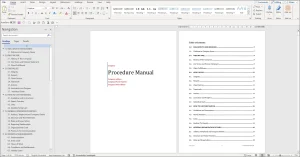
Step by Step – How to Build a Word Procedure Manual
Step 1: Plan the Structure and Scope
Before opening MS Word, outline what your manual will include. Start by listing the key areas your manual will cover, such as administration, operations, HR, or finance. Outline your sections and subsections so the document has a clear flow from start to finish.
Step 2: Set Up Styles in MS Word
Open a new document and define consistent heading and paragraph styles under the Home tab. Use Heading 1 for main sections, Heading 2 for subsections, and Normal for body text to keep formatting uniform.
Step 3: Build a Table of Contents
Insert an automatic table of contents from the References tab. This is a great MS Word feature and something you should definitely use. This will update as you add or edit headings, making it easy to navigate and maintain.
Step 4: Write Each Procedure Clearly
Use a consistent format for each procedure, including the title, purpose, scope, responsibilities, and step-by-step instructions. Keep sentences short and action-oriented for clarity.
Step 5: Add Visuals and Links
Use tables, flowcharts, and screenshots to illustrate complex processes. MS Word allows you to add these. Add hyperlinks to connect related procedures or reference documents within the manual.
Step 6: Apply Branding and Layout
Insert your logo, use brand colors, and add headers, footers, and page numbers for a professional look. Include a title page, revision table, and consistent spacing throughout.
Step 7: Review and Finalize
Proofread for clarity and accuracy, then restrict editing or convert the file to PDF before sharing. You can print to PDF in Word directly. Keep a revision history so updates and approvals are easy to track.
💡 Tip
Automated TOC and Navigation Pane. Use both the automated Table of Contents feature and the Navigation Pane in MS Word and this will make your document so much more user friendly.
Priority Matrix
The “Systems First” Priority Matrix
Use this to decide which sections of the template to customize first for the fastest ROI:
The Detail of a Word Procedure Manual
When trying to build something that very complex the best way to do it is to break it down into manageable small chunk size pieces so that your team can understand it the simplest form possible and deliver it step by step.
This is how you should be setting up your Procedure Manual. If your business is complex, then this will take a lot of time, however it will deliver the quality you are looking for.
You may need to create a process manual as well.
💡 Tip
More Detail does Help. Regardless of what others say, if you really want to focus on quality in your business, then you will need to spell it out – step by step. It takes an incredible amount of effort and detail to do this, however it is worth it.
As soon as new team members join your business, they will be able to read the Quality Manual system and complete their daily tasks on a much easier to understand basis.
You will be able to relax a little knowing your product or service is going out the door with quality attached to it and repeat work should start coming your way.
✕ Stop Losing Money On:
- • Inconsistent quality from staff
- • Constant micromanagement and interruptions
- • Training new hires from scratch every time
- • Costly “trial and error” mistakes
Flexibility and Ease for Business Growth
As your organization grows, you will eventually need a more flexible tool that allows you to manage data better. There is simply way too much information required to rely on an MS Word document.
However, to get the ball rolling, MS Word is definitely a cost effective way to start.
The other huge benefit of using MS Word is that it also allows you to see how things go in your business without outlaying too much expense. You need to know what is actually going to work and what will be the best for your business and planning and mapping it out in a simple word processing document is ideal.
Microsoft Word is a fast and easy way to create a Quality System for your business
✅ Best Practice
Start out simple. Every business is different and will require different methods of staff accessing the manual, so starting out with an MS Word file could be a good planning tool for your Procedure Manual.
Frequently Asked Questions about Using MS Word for Policy and Procedure Manuals
Is MS Word a good tool to create a Policy and Procedure Manual?
Yes. If you want something fast, efficient and easy to update, MS Word is an excellent tool for creating a Policy and Procedure Manual.
What are other Advantages of using MS Word?
Another big advantage is accessibility. Most staff are already familiar with Word, so editing, reviewing, and maintaining the manual is simple.
Does it take a long time to create a Procedure Manual in MS Word?
It depends on how detailed your manual needs to be, but using Microsoft Word can make the process much faster. If you’re starting from scratch, it can take several days or weeks to write, organize, and format all the procedures properly.
Can I create an automatic Table of Contents in MS Word for my procedure manual?
Yes. By using MS Word’s built-in heading styles (Heading 1, Heading 2, etc.), you can generate an automatic Table of Contents that updates as you add or change sections so no manual page tracking required.
How do I protect my procedure manual in MS Word so staff can’t accidentally edit it?
MS Word allows you to restrict editing or mark the document as “Read-Only.” You can require a password for changes, ensuring the manual stays consistent while still letting staff view and reference it.
How can the Navigation Pane in MS Word help me work with my procedure manual?
The Navigation Pane lets you see all your headings in a sidebar, making it easy to jump between sections, reorganize content with drag-and-drop, and quickly find specific procedures.
Microsoft Word Procedure Manual Thoughts?
Speak Your Mind
What about you and your business?
- Do you enjoy using MS Word and find it easy?
- Do you have some sort of system in your business?
- Where does your manual stand today?
- Does it have a few pages or does it have hundreds of pages?
- What have you found that works and what have you found that doesn’t get used?
- Do you even bother?
- Or just keep fighting the fires as business owner?
It would be great to hear your comments and let us know if you think a procedure manual is worth your time or not.
Download a Free Sample
Download a Procedure Manual Template
